Transparent GIF Maker
Free. No watermark. No sign-up.
Example transparent GIF
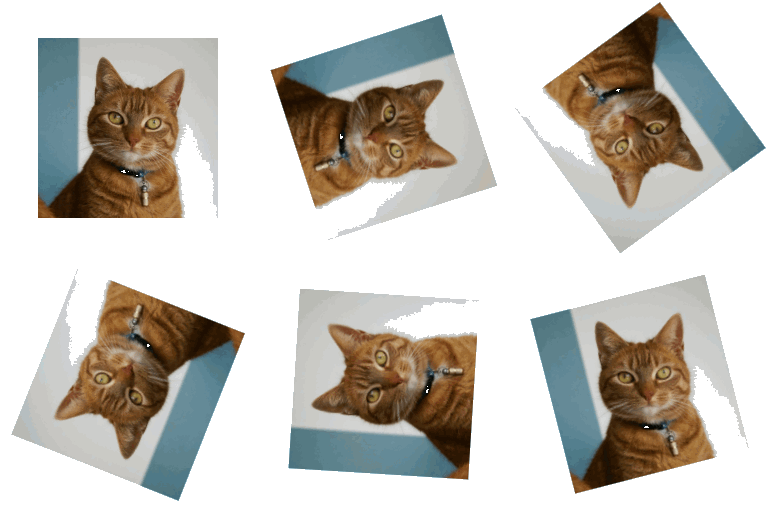
How to make a GIF transparent
- Press Choose image and pick a GIF or a picture.
- Leave Auto-detect background on. It takes the color in the top-left corner of the first frame and removes it from every frame.
- Move the Tolerance slider until the background is gone and the subject is whole. The checkered area in the preview is the transparent part.
- Press Download GIF.
Transparency settings
Auto-detect background works when the background is one flat color that reaches the top-left corner. If it picks the wrong color, turn it off and choose the Color to remove yourself.
Tolerance is how close a pixel must be to that color to be removed. At zero only exact matches go. Raise it for a noisy or shaded background. Lower it if parts of the subject disappear.
Edges only is on to start with. It removes the color only where it connects to the border of the picture, so a white background goes but white eyes or teeth inside the subject stay. Turn it off to remove the color everywhere, even inside the subject.
Which GIFs work best
To give a GIF a transparent background, start from a flat backdrop: plain white, black or a green screen. A busy photo background won't work: the tool removes one color, not a whole scene.
A GIF pixel is either solid or fully transparent, so edges come out crisp. GIFs and pictures larger than 480 px are scaled down to 480 px on the long side, and GIFs with more than 120 frames are thinned to 120 or fewer.
Where transparent GIFs get used
Stickers and emotes for Discord and Slack, overlays for streams and videos, and animations that sit on a colored web page or slide. It takes stills too: a JPG or PNG comes out as a one-frame transparent GIF.