GIF Color Changer
Free. No watermark. No sign-up.
Example recolored GIF
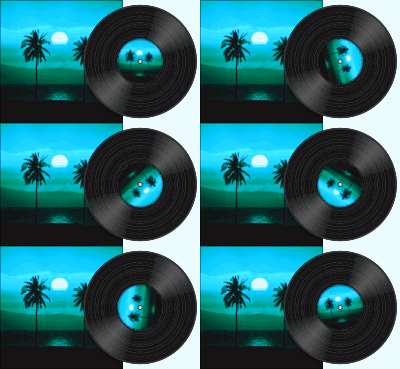
How to change the colors in a GIF
- Press Choose image and pick a GIF or a picture.
- Under Change, pick Shift every color, Replace one color or Tint with one color.
- Set the sliders and colors that appear.
- Press Download GIF.
Three ways to recolor a GIF
Shift every color turns all the colors around the color wheel together. The Hue shift slider runs from -180 to 180: reds move towards green on the way up and towards blue on the way down. Black, white and gray stay as they are.
Replace one color changes a single color and leaves the rest. Pick the Color to replace and the New color. Lighter and darker shades of the old color become lighter and darker shades of the new one, so shading is kept. How close a color must be sets how wide a range of shades is caught: raise it if patches are left behind, lower it if other colors start to change.
Tint with one color repaints the whole picture in shades of the Tint color. Dark parts stay dark and light parts go towards white. Tint strength mixes the tinted picture with the original.
Saturation and invert
Saturation works with all three. Slide it left to fade the colors towards gray, right to make them stronger.
Invert colors swaps every color for its opposite, like a photo negative. It is applied last.
GIF color changer limits
Every frame is changed the same way, and the GIF keeps its speed. A still picture comes out as a one-frame GIF. A transparent background stays transparent.
A GIF larger than 1000 px on its long side is scaled down to 1000 px. A GIF with more than 300 frames is thinned to 300 or fewer and keeps its length.