Crop GIF
Free. No watermark. No sign-up.
Example cropped GIF
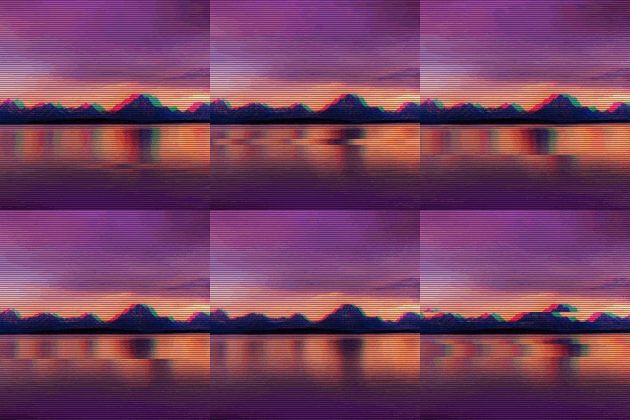
How to crop a GIF
- Press Choose image and pick a GIF.
- Pick a Shape: Free, or a fixed one such as Square (1:1).
- Move the sliders until the preview shows only the part you want.
- Press Download GIF.
Crop GIF settings
Free gives you four sliders: Cut from the left, Cut from the right, Cut from the top and Cut from the bottom. Each takes up to 45% off its side, so at least a tenth of the GIF always stays.
The fixed shapes are Square (1:1), 4:3, 3:4, 16:9 and 9:16. Crop size at 100 is the largest area of that shape that fits in the GIF, and it goes down to 20. Horizontal position and Vertical position move the area: 0 puts it against the left or top edge, 50 in the middle and 100 against the right or bottom edge.
What stays the same in a cropped GIF
Every frame is cropped the same way, and the timing stays, so the GIF plays at the same speed. The kept pixels aren't scaled or blurred, and a transparent background stays transparent. A still picture, such as a JPG or PNG, comes out as a one-frame GIF.
What to crop a GIF for
Cutting off black bars or an empty edge. Making a square GIF for a profile picture, or a 9:16 one for a story. Closing in on a face. A smaller area also makes a smaller file.
Crop GIF limits
A GIF larger than 1000 px on its long side is scaled down to 1000 px. A GIF with more than 300 frames is thinned to 300 or fewer and keeps its length, and a long GIF at a large size can be thinned further.