GIF Collage Maker
Free. No watermark. No sign-up.
Example GIF collage
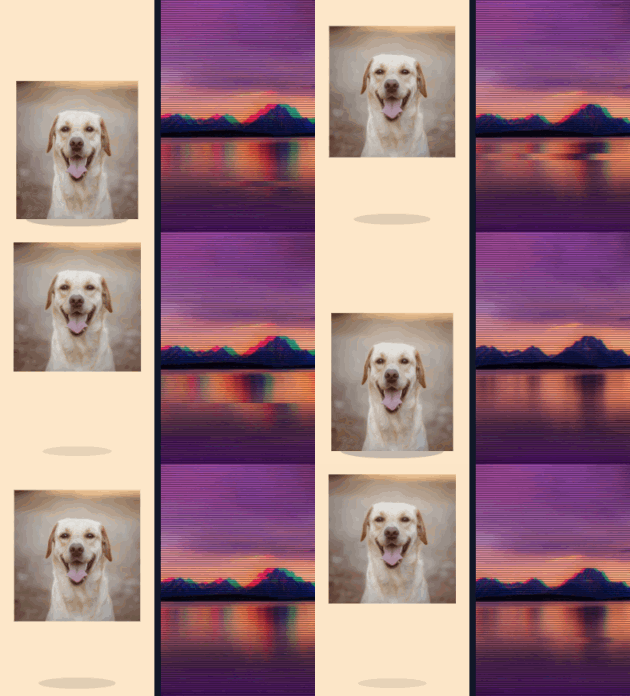
How to combine GIFs into a collage
- Pick the first and second GIF or image. Add a third and a fourth if you want them.
- Choose a layout: Side by side, Stacked or 2 x 2 grid.
- Set the gap size and the gap color.
- Press Download GIF.
Collage layouts
Side by side stitches the GIFs together in one row. Stacked puts them in one column. 2 x 2 grid makes rows of two. With three pictures the third spans the bottom row, and with two the grid looks the same as side by side.
Every cell takes the shape of the first picture. The others are cropped around their center to fill their cell, so nothing gets squashed. Put the picture you least want cropped first.
How the GIFs play together
Every GIF plays at its own speed on one shared clock. The collage lasts as long as the longest GIF, up to 9.6 seconds, and shorter GIFs loop until it ends. It updates every 80 ms, so a very fast GIF can skip a frame here and there.
Still pictures hold still next to the moving ones. With only stills you get a one-frame GIF.
Gap and size
Gap size is the space between cells, from 0 to 40 px. At 0 the pictures touch. Gap color also shows through any transparent parts of a picture.
The finished collage is at most about 640 px on its long side. Cells are never larger than your biggest picture, so small GIFs make a small collage. Uploaded GIFs larger than 480 px are scaled down to 480 px on the long side, and GIFs with more than 120 frames are thinned to 120 or fewer.