Countdown GIF Maker
Free. No watermark. No sign-up.
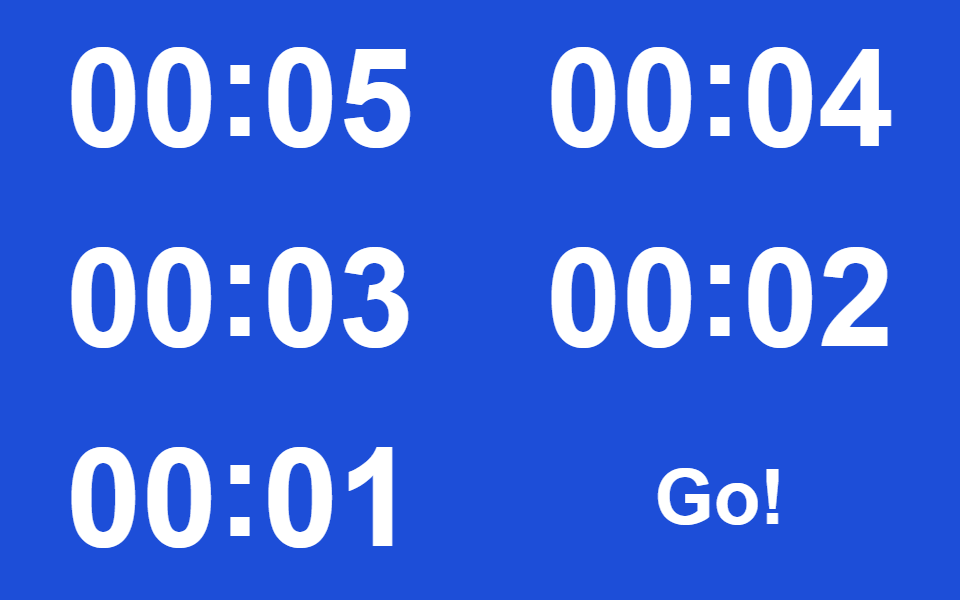
Example countdown GIF
How to make a countdown GIF
- Pick the minutes and seconds to count down from.
- Choose the Digital or Plain style.
- Set the text and background colors, and type an end message.
- Press Download GIF.
How the countdown runs
The GIF shows the time as MM:SS and uses one frame for every second, so a two-minute timer really takes two minutes. When it reaches zero, the end text shows for three seconds and the GIF starts over. The longest countdown is 5 minutes.
The timer starts when the GIF loads. It counts down a length of time, not to a calendar date.
Countdown settings
Style: Digital is a slanted seven-segment display like an alarm clock, with the unlit segments faintly visible. Plain is big bold numbers.
Colors: red or green on black suits Digital. For Plain, pick colors that match your slide or page.
End text can be up to 30 characters, like "Time's up!" or "Go!". It shrinks to fit on one line. Leave it empty to end on 00:00.
Where a countdown clock GIF gets used
Break and activity timers on classroom slides, quiz and game rounds, workout intervals, "starting soon" screens on streams, and presentations.
The GIF is 480 x 200 px. A 10 second countdown is about 60 KB, and a 5 minute one stays under 2 MB.