GIF Caption Maker
Free. No watermark. No sign-up.
Example captioned GIF
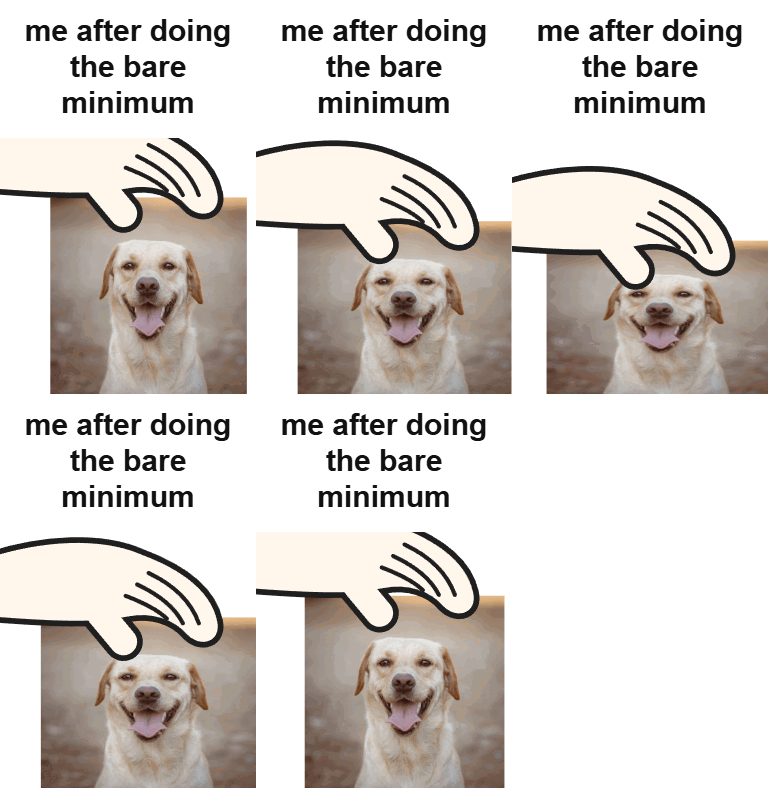
How to add a caption to a GIF
- Press Choose image and pick a GIF or a picture.
- Type your caption. Press Enter to start a new line.
- Pick a style, a font and a text size.
- Press Download GIF.
Caption bar or text on the GIF
Caption bar on top adds a strip above the GIF with your words in it, the way reaction GIFs are captioned on social feeds. The strip grows as your caption wraps onto more lines, and the GIF underneath is not covered.
Text over the top and Text over the bottom put the words on the GIF itself. They get an outline in the opposite shade, so white text stays readable on a bright GIF and dark text on a dark one.
Fonts, size and colors
Sans is the plain bold look most captioned GIFs use. Impact is the classic meme font. Serif reads more like a quote. Set the text color for any style, and the bar color when you use the caption bar. Black text on a white bar is the standard.
What happens to your GIF
Every frame keeps its timing, so the captioned GIF plays at the same speed as the original. GIFs larger than 480 px are scaled down to 480 px on the longest side, and very long GIFs are thinned to 120 frames. A still picture comes out as a one-frame GIF with the caption on it.
Tips for captioning a GIF
- Short captions read best. One or two lines is plenty.
- Make the text bigger for small GIFs that will be seen in a chat.
- Use the caption bar when the top of the GIF has something you want to keep.