Rotate GIF
Free. No watermark. No sign-up.
Example rotated GIF
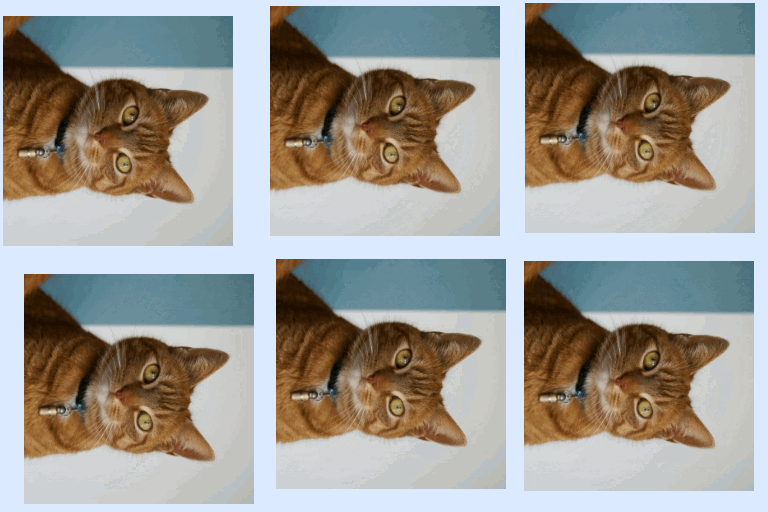
How to rotate a GIF
- Press Choose image and pick a GIF or a picture.
- Pick a rotation: 90° clockwise, 90° counterclockwise or 180°.
- Turn on a flip if you want a mirror image.
- Press Download GIF.
Rotate GIF settings
Rotate turns the GIF in quarter turns. A 90° turn either way swaps the width and the height, so a wide GIF comes out tall. 180° turns it upside down. Choose Don't rotate if you only want a flip.
Flip left to right makes a mirror image: what was on the left ends up on the right, and any writing reads backwards.
Flip top to bottom mirrors it the other way, top for bottom.
The flips are applied after the turn, to the picture as it ends up. Both flips together are the same as a 180° turn.
What stays the same
Every frame is turned the same way. The number of frames and their timing stay as they were, nothing is cropped or stretched, and a transparent background stays transparent. A still picture, such as a JPG or PNG, comes out as a one-frame GIF.
When to rotate or flip a GIF
A GIF made from a video that was filmed with the phone on its side. A screen recording that came out sideways. A selfie-camera clip where the writing on a shirt or a sign reads backwards, which a flip left to right puts right.
Rotate GIF limits
A GIF larger than 1000 px on its long side is scaled down to 1000 px. A GIF with more than 300 frames is thinned to 300 or fewer and keeps its length, and a long GIF at a large size can be thinned further.