Discord Banner GIF Maker
Free. No watermark. No sign-up.
Example Discord banner GIF
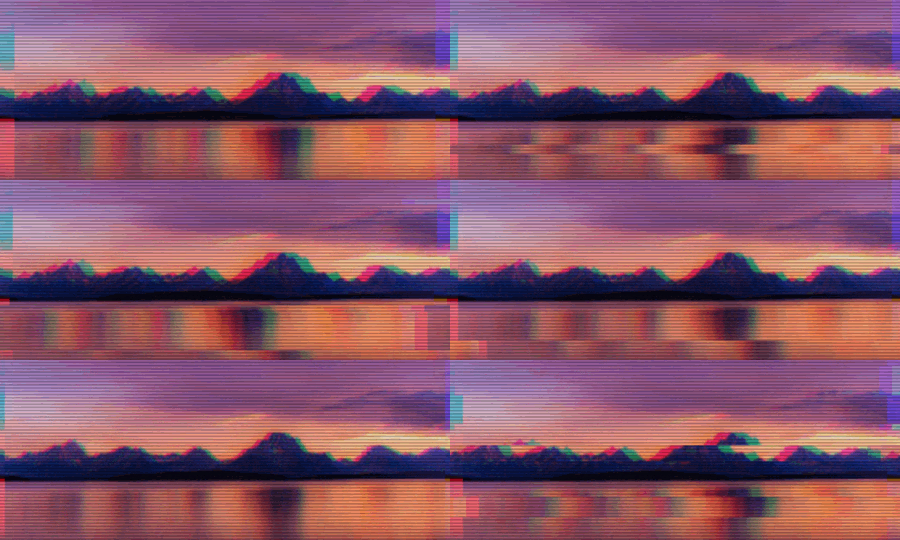
How to make a Discord banner GIF
- Press Choose image and pick a GIF or a picture.
- Move Zoom, Horizontal position and Vertical position until the part you want fills the banner.
- Type in Text if you want words on it.
- Press Download GIF.
Discord banner GIF settings
Zoom runs from 100 to 300. At 100 the banner shows the biggest piece of the picture that has the banner's shape. Higher numbers take a smaller piece and enlarge it.
Horizontal position and Vertical position slide that piece across the picture, from 0 at the left or top edge to 100 at the right or bottom. At a Zoom of 100, at most one of them moves anything.
Text is one line across the middle. Once you type, Text color and Text size appear. The text gets a black outline, or a white one if its color is dark, so it reads over any picture. Text too long for the banner shrinks to fit.
Discord banner size
A Discord profile banner has a 5:2 shape, and 600 x 240 px is the size most often given for it. The tool always makes a 600 x 240 GIF. Animated banners need Discord Nitro.
What to put on a Discord banner
A gameplay clip, a looping landscape, your art, or your name over a moving background.
Discord banner GIF limits
The GIF keeps its frames and timing, and a transparent background stays transparent. A still picture comes out as a one-frame GIF. A GIF larger than 1000 px on its long side is scaled down to 1000 px, and one with more than 300 frames is thinned to 300 or fewer. A long GIF at a large size can be thinned further.