Resize GIF
Free. No watermark. No sign-up.
Example resized GIF
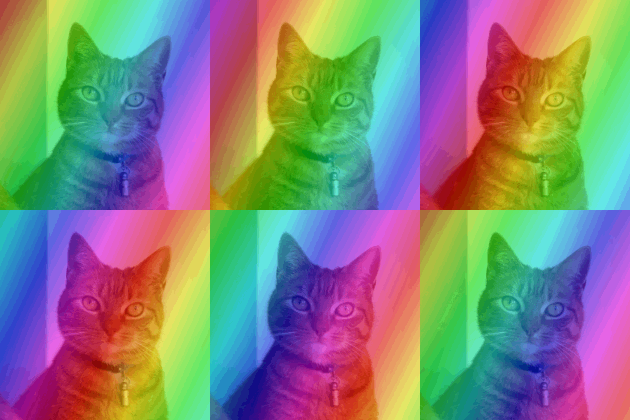
How to resize a GIF
- Press Choose image and pick a GIF.
- Under Resize by, pick Percentage or Width and height.
- Move the sliders. The preview shows the GIF at its new size.
- Press Download GIF.
Resize GIF settings
Percentage scales both sides together, from 10% to 200%.
Width and height sets the size in pixels. With Keep the shape on, you set the Width and the height follows, so nothing is stretched. Turn it off to set the Height too, which stretches or squashes the GIF to fit.
Sharp pixels is for pixel art. Each pixel becomes a hard-edged block instead of blending with its neighbors, so a small sprite stays crisp when it is blown up. Whole steps such as 200% keep every pixel the same size. Leave it off for photos, where blending looks smoother.
What stays the same in a resized GIF
Every frame is resized, and the timing stays, so the GIF plays at the same speed. A transparent background stays transparent. A still picture, such as a JPG or PNG, comes out as a one-frame GIF.
When to resize a GIF
Shrinking a GIF to the size an emoji, avatar or forum asks for, or to make the file smaller: at 50% it has a quarter of the pixels. Blowing up small pixel art.
Resize GIF limits
The result is at most 1600 px on its long side. A bigger size is scaled down to fit, keeping its shape. A GIF larger than 1000 px on its long side is scaled down to 1000 px when it loads, and the percentage counts from there. A GIF with more than 300 frames is thinned to 300 or fewer and keeps its length.