GIF Loop Maker
Free. No watermark. No sign-up.
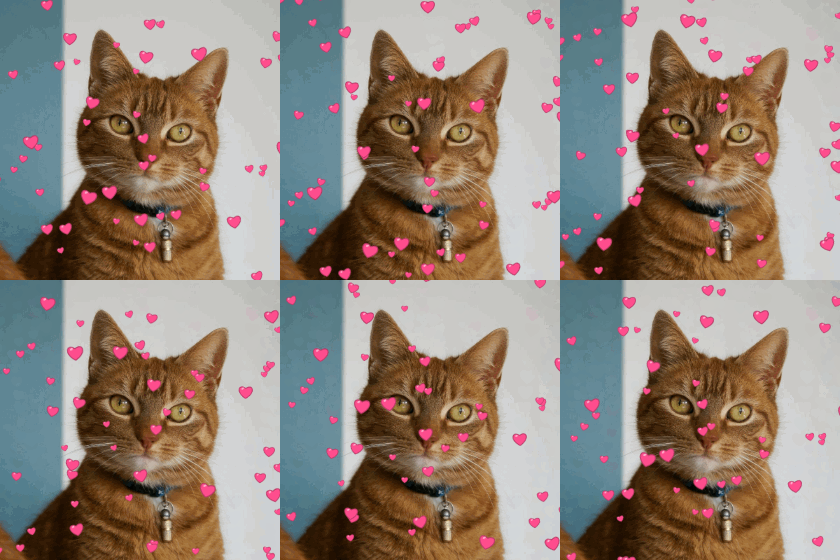
Example looping GIF
How to make a GIF loop
- Press Choose image and pick a GIF.
- Under Loop, pick Forever or how many times it should play.
- Set Hold the last frame and Smooth the loop if you want them.
- Press Download GIF.
GIF loop maker settings
Loop sets how many times the GIF plays: Forever, Once, or 2, 3, 5 or 10 times. A GIF with a set number of plays stops on its last frame. The preview does the same, and starts over when you change a setting.
Hold the last frame keeps the last frame on screen for up to 5 seconds more, so there is a pause before the GIF plays again.
Smooth the loop fades the end of the GIF into its start over 0 to 8 frames, so the jump back to the beginning is softer. The first frames are blended into the last ones instead of playing on their own, so the GIF gets that many frames shorter. It uses at most half of the GIF's frames.
Smoothing works best when the end and the start nearly match, such as a slow camera drift. When they are far apart, the fade shows as a see-through double picture.
Why a GIF doesn't loop
How many times a GIF plays is written in the file, and a GIF without that setting plays once and stops. Pick it here, choose Forever and download it, and it repeats for good.
GIF loop maker limits
A transparent background stays transparent. A GIF larger than 1000 px on its long side is scaled down to 1000 px, and a GIF with more than 300 frames is thinned to 300 or fewer and keeps its length.