GIF to Sprite Sheet
Free. No watermark. No sign-up.
Example sprite sheet
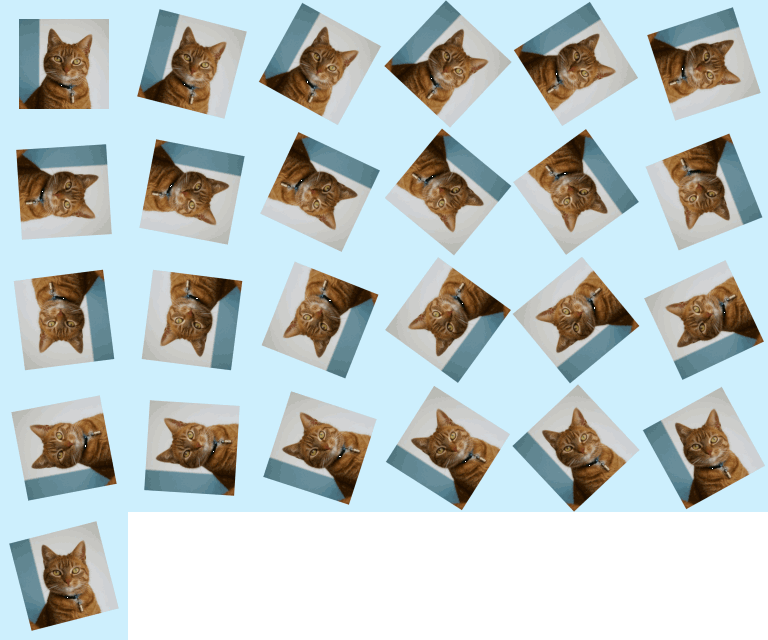
How to turn a GIF into a sprite sheet
- Press Choose image and pick a GIF.
- Set Columns to the number of frames you want in each row.
- Pick the frame size, and a gap if your engine needs one.
- Press Download PNG.
What a sprite sheet is
It is one picture that holds every frame of an animation in a grid. A game engine, or a CSS animation, cuts it into cells and shows them one after another. Here the frames run left to right, then top to bottom, and every cell is the same size.
Sprite sheet settings
Columns is how many frames go in a row, from 1 to 30. The rows follow from the number of frames. Use 1 for a vertical strip.
Frames can use every 2nd, 3rd or 4th frame for a lighter sheet.
Frame size is 100%, 75%, 50% or 25% of the GIF, and starts at 50%.
Gap between frames adds 0 to 16 empty pixels between cells.
Transparent background is on to start with, so gaps and see-through parts stay clear. Turn it off to pick a Background color.
The numbers your engine asks for
After the download, the line under the button gives the frame count, the columns and rows, the size of one frame in pixels, and the frames per second that match the GIF's speed.
GIF to sprite sheet limits
The preview is a smaller copy; the PNG is full size. A long GIF at full size would make a sheet too big to draw, so its frames are shrunk until the sheet is under 16 million pixels. A GIF with more than 300 frames is thinned to 300 or fewer.
To go the other way, use Sprite Sheet to GIF.